

Notifications
Clear all
FAQs
1 Posts
1 Users
0 Reactions
2,171 Views
Topic starter
There are various ways to get signed consent from a patient for planned treatments. Each one is described below, starting from the most basic to most enhanced.
1. A generic declaration for your treatment plans
The simplest way to get consent is to add patient consent as a standard declaration to your treatment plans and/or options. To do this select "File" -> "Practice Settings" from the main menu at the top of the screen and select the "Documents" tab.
In the treatment plan declaration, insert the consent text you would like to show at the bottom of your plan where the patient signs the plan.
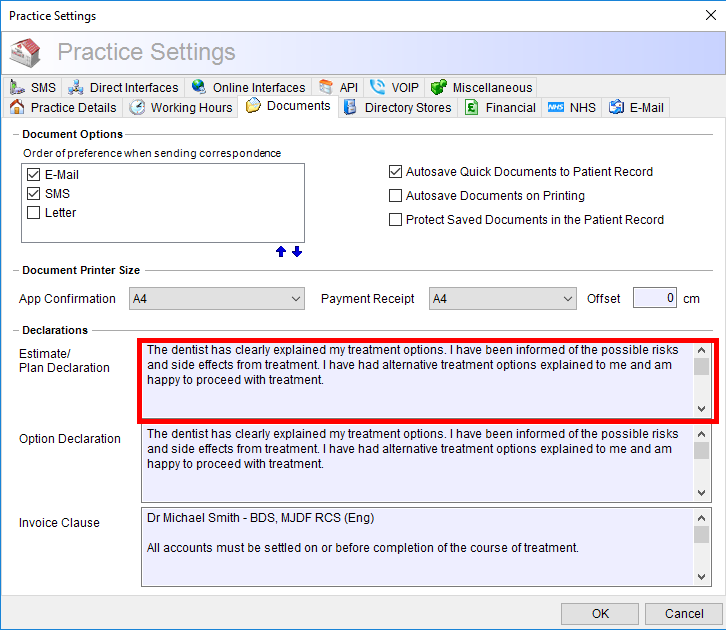
2. A note that appears beneath individual treatments that contains consent information specific to that treatment.
Go to the treatments database by selecting "Treatments" on the left of the screen and double-click a treatment you would like to always add consent for.
Select the "Notes" tab and below the "Treatment Plan Notes" section, insert the consent text you would like to appear beneath that treatment when it is added to a treatment plan.
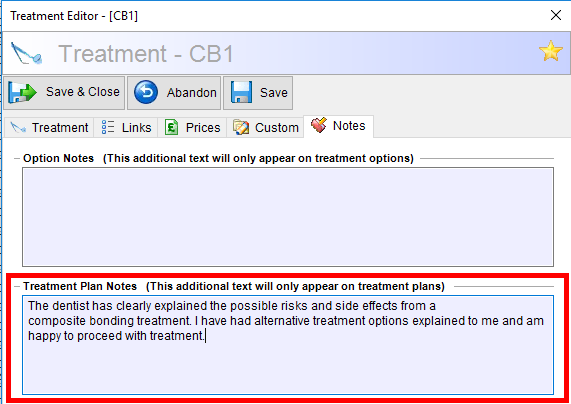
3. Create a quick document consent template using the Bridge-IT word processor.
If you would like the patient to sign a separate consent letter for the treatment being performed, go to "Documents" on the left of the screen and select "Word Processor". Create your document template by typing in the consent information and inserting the required fields using the selection on the left of the document. This template can be as generic (covering all treatments) or as specific as you like. For example, below is a sample consent template for Crowns, Veneers and Bridges.
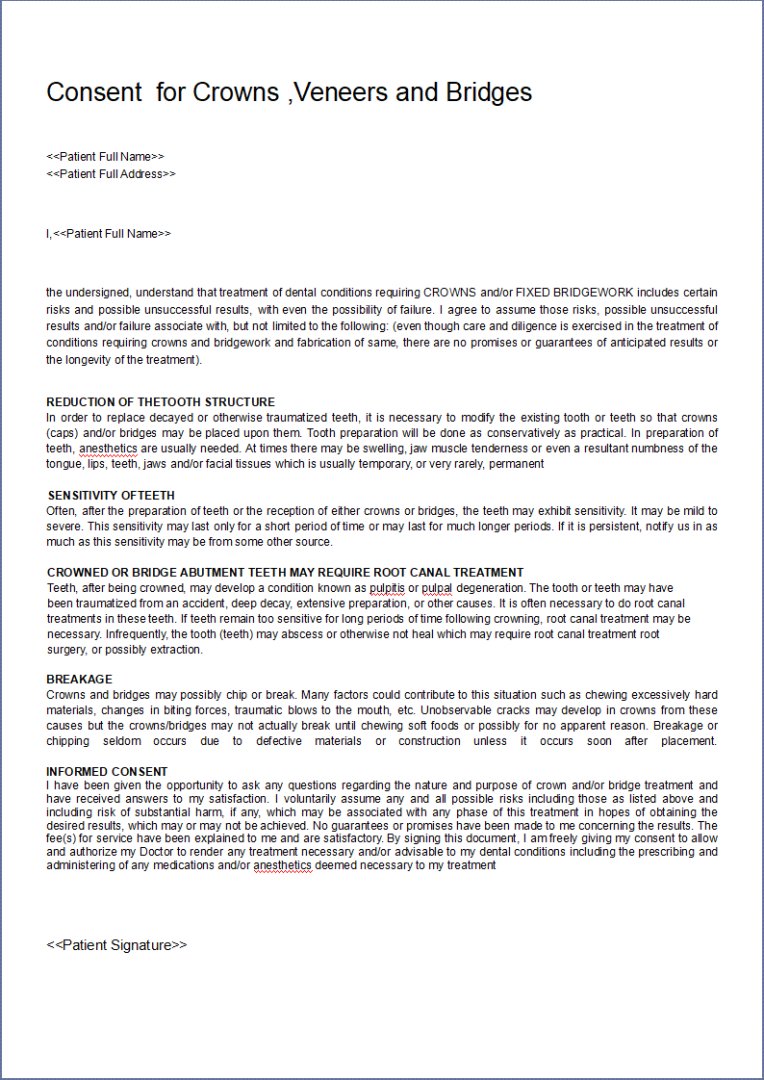
Now when we want the patient to sign the letter, we can either "Create Quick Document" from the "Common Tasks" section at the bottom of the patient record, which will insert the various fields we have added such as name and address etc. If your practice uses the Sign-IT app, you can send the document to the tablet for the patient to sign and it will then be stored under the "Documents" tab in the patient record.
4. Automatically send generic consent forms for signing whenever the patient has an upcoming appointment using the online patient portal.
To always send a consent form to a patient for an upcoming appointment using the online patient portal, first create the consent template using the word processor as described above.
Then, from the main menu at the top of the screen, select "Patient Portals" -> "Configure Web Forms Portal" and select the "Form Selection & Automation" tab.
Under the "Additional Quick Documents Requiring Signature", tick the consent form you would like to send as standard before any appointment. This will send out the consent form along with all your other web forms.
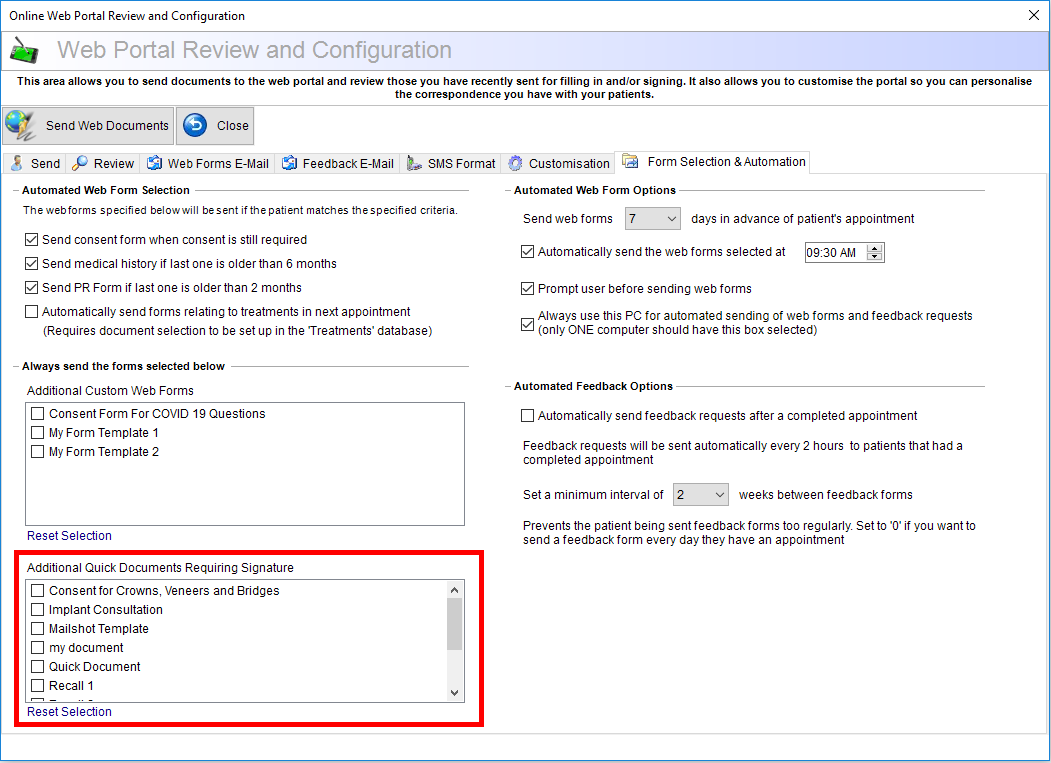
5. Automatically send treatment specific consent related forms for signing using the online patient portal.
If you want the software to automatically send consent forms for treatments that are due to be performed in the next appointment in your patient's chart, first create all the consent templates you require with the word processor as described above.
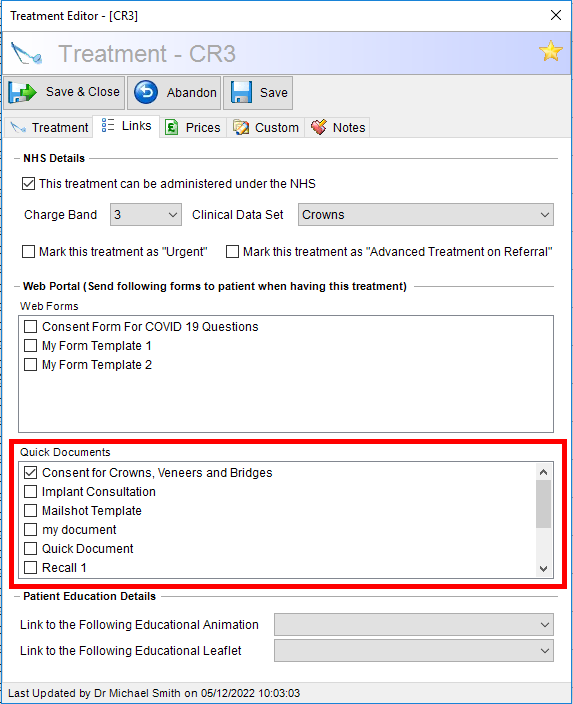
Now we need to connect your consent forms to the treatments they relate to, so go to the treatments database by selecting "Treatments" on the left of the screen and double-click a treatment you would like to connect to a consent form you have created.
Select the "Links" tab, and below the "Quick Documents" section, tick the consent template you want a patient to sign when having this treatment.
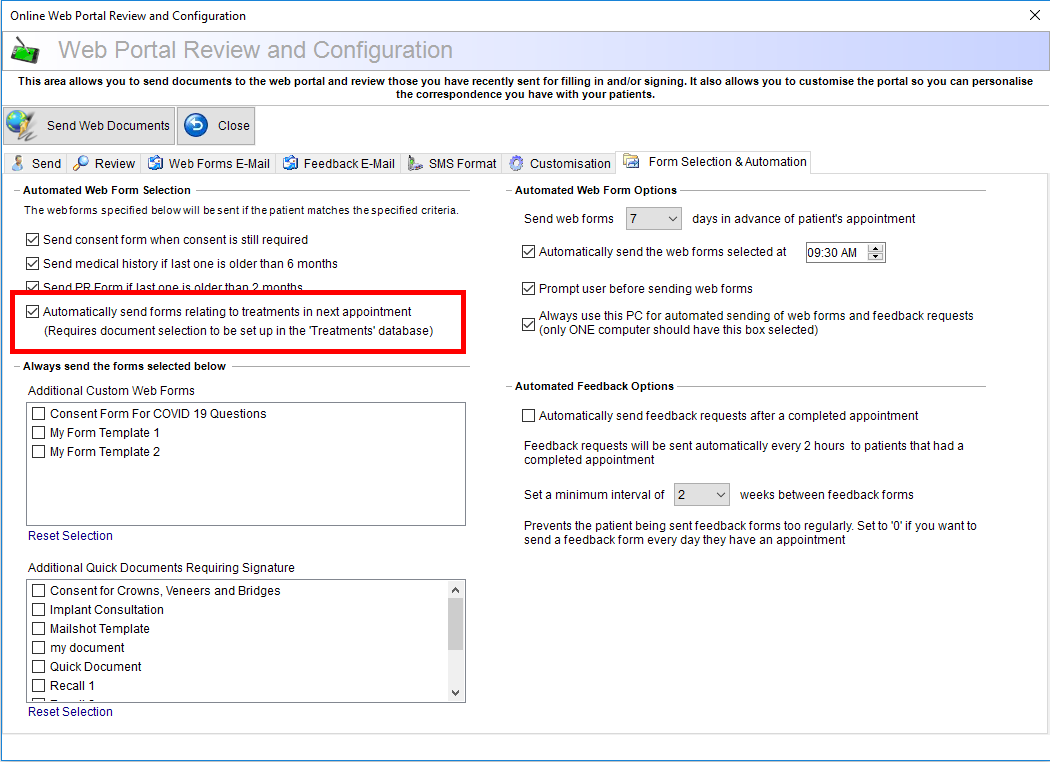
Then, from the main menu at the top of the screen, select "Patient Portals" -> "Configure Web Forms Portal" and select the "Form Selection & Automation" tab.
Tick the box "Automatically send forms relating to treatments in the next appointment".
When the patient's appointment is due, the software will analyse the planned treatments for the next appointment in the patient's chart and automatically send the relevant consent forms along with your other web forms.
If you need any assistance setting up your patient consent option please call us.
Posted : 13/12/2024 6:47 pm
